If you're wondering how to block apps on iPhone, start with what's already there. There are four ways to block or slow down apps on an iPhone without installing anything: Screen Time limits, Screen Time schedules, Focus modes and Shortcuts automations. Then there are the apps that build on Apple's Screen Time system to make blocking stricter or smarter.
Menu names below come from Apple's iPhone User Guide. iOS 27 reorganized Screen Time, so where it matters we give the iOS 26 path too. If you want to lock an app so other people can't open it, that's a different feature: see how to lock apps on iPhone.
Option 1: Screen Time limits
This is the classic "one hour of Instagram a day" setup. When you hit the limit, the app dims and an hourglass screen tells you time is up.
iOS 27: Time Allowances
- Open Time Allowances
Go to Settings, Screen Time, Time Allowances. If Screen Time isn't on yet, tap Turn On App & Website Activity first.
- Set a daily total
Drag the slider to set how much total time you get across your categories.
- Set category allowances
Under Time Allowances, tap a category such as Social Media or Entertainment and set its own amount. To add a category, tap Manage Categories.
Apple's guide says you can use apps in each category until you reach either the category's allowance or the daily total. If an app has a website that it declares, the allowance covers the website too.
iOS 26: App Limits
- Add a limit
Go to Settings, Screen Time, App Limits, then tap Add Limit.
- Pick apps
Select a category, or tap into it to pick single apps. If you pick several, they share one time budget.
- Set the time
Tap Next, set the amount, and use Customize Days if weekends should be different.
Option 2: Screen Time schedules
Limits cap how long. Schedules control when. On iOS 27, go to Settings, Screen Time, Screen Time Schedule, turn on Schedule, then tap Add Schedule and choose days. Each time window, like work or evening, shows which Time Allowance categories are available during it. On iOS 26 the same idea is called Downtime: tap Downtime, then Scheduled, and set start and end times.
Whatever you block, keep the important stuff reachable. Always Allowed, under Screen Time, lists apps and contacts that stay available no matter what. Apple suggests adding family members or the Health app there for emergencies.
App limits on iPhone: permanent or by time
Before you pick a tool, decide which kind of block you want. They solve different problems.
Time-based blocking means the app works some of the time. A Time Allowance (iOS 27) or App Limit (iOS 26) caps how long you use it each day. A Screen Time Schedule (iOS 27) or Downtime (iOS 26) decides when it's available at all. This suits apps you need, like a messaging app you want quiet after 10 pm, or YouTube you're fine with for half an hour.
Permanent blocking means the app is gone or shut until you take deliberate action. The simplest version is deleting it: touch and hold the app, tap Remove App, then Delete App. It's free and it works, but reinstalling it from the App Store is quick. Blocker apps sit in between. Brick keeps apps blocked until you tap the device, and Quizlock keeps them locked all the time, opening them only for minutes you earn with right answers.
A good rule: if you'd miss the app on a bad day, use a time limit. If you keep losing hours to it, block it permanently and let yourself back in on purpose. For one app in detail, see how to block TikTok on iPhone.
The catch: you can ignore all of it
Apple's guide says it in plain words: by default, Screen Time limits can be ignored once reached. Tap Ignore Limit and the app opens. To make limits stick, you need a Screen Time passcode:
- iOS 27: Settings, Screen Time, Manage Screen Time, Lock Screen Time Settings.
- iOS 26: Settings, Screen Time, Lock Screen Time Settings. Then turn on Block at Downtime under Downtime so blocked apps can't be opened during downtime.
The passcode only works if you don't know it. Ask someone else to set it. We cover this, and why it still tends to break down for adults, in how to remove Ignore Limit. If limits aren't showing up at all, see Screen Time limits not working.
Option 3: Focus modes
Focus doesn't block apps. It silences them. Under Settings, Focus, pick a Focus like Work or Personal and choose which people and apps can send you notifications. You can also link a Focus to a Home Screen page that only shows the apps you need, and have it turn on at a set time, at a location, or when you open a certain app.
That's useful because a lot of app use starts with a notification. Strip the alerts and the clean Home Screen together, and you'll reach for Instagram less. But if you open it yourself, Focus won't stop you.
Option 4: Shortcuts automations
The Shortcuts app has an App trigger with an Is Opened option, which runs an automation when you open or switch to a chosen app. People use it to show a reminder, start a timer, or bounce to a different app. It's free and flexible, but it's a speed bump, not a lock. It also takes some fiddling to set up well.
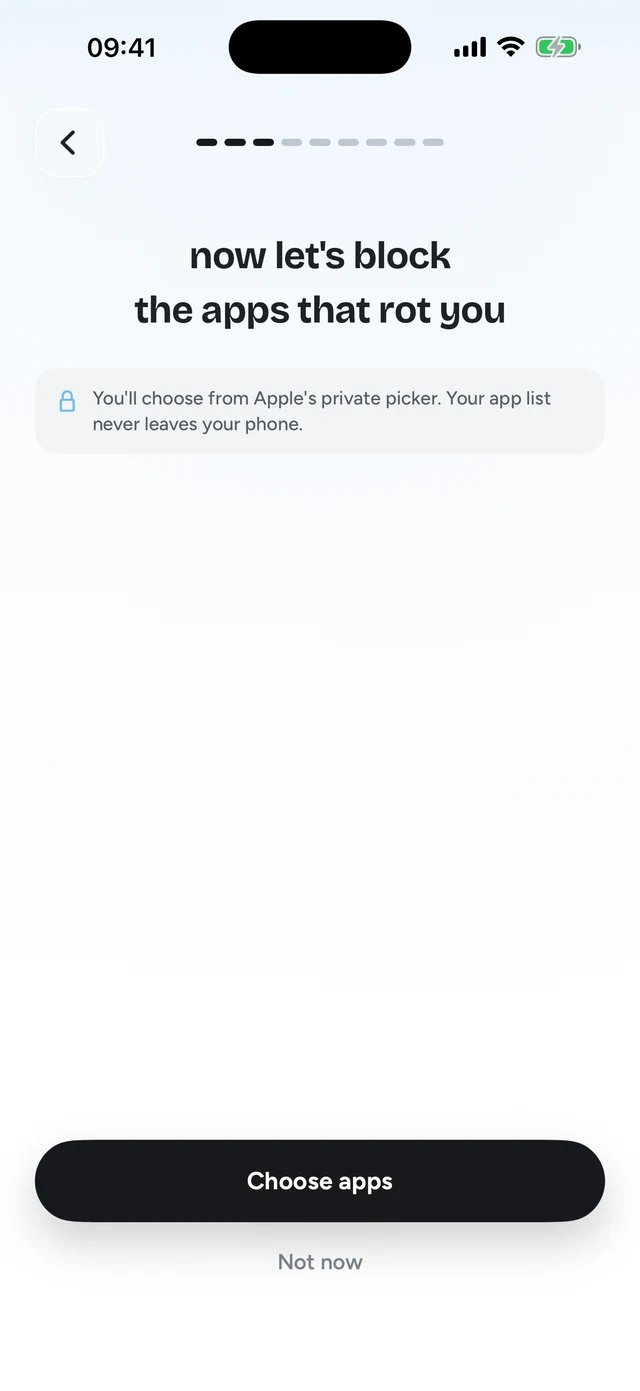
Step 1 of 3Pick the apps that eat your time


Option 5: blocker apps
Most third party blockers on iPhone lean on Apple's Screen Time framework for the actual blocking. What they add is a different rule for when the block lifts. Here are the main approaches. Prices are US list prices as of October 2026.
Opal: schedules and a hard lock
Opal blocks apps on schedules and timers and keeps an Opal Score of your day. The free plan includes one rule. Opal Pro adds Hard Mode, which Opal describes as "no way out": you can't turn Opal off during a session. Pro is $99.99 a year, $19.99 a month, or $399 lifetime, and Opal runs on iPhone, Android and Mac. Compare it with us in Quizlock vs Opal.
one sec: a breathing pause
one sec interrupts the app you're opening with a short breathing exercise and asks if you still want to go in. On iPhone it hooks in through a Shortcuts automation. The free version covers one app. It's available on iPhone, Android and as a browser extension. See Quizlock vs one sec.
Brick: a physical key
Brick is a small NFC device that costs $59 one time. Tap your phone on it to block apps, tap again to unblock. You get five Emergency Unbricks if you need out early, and a Strict Mode stops you from deleting the app to escape. It works on iPhone with iOS 18 or later and on Android 12 or later. See Quizlock vs Brick.
Quizlock: earn your minutes
Quizlock is ours. It locks the apps you choose through Screen Time, and when you open one, it asks a quiz question on a topic you picked. A right answer earns 2 minutes. Minutes go in a wallet that holds up to 30. You can learn anything you can type, or make quizzes from your PDFs, photos of your notes or a web link. It's iPhone only, $69.99 a year with a 7-day free trial, or $12.99 a month.
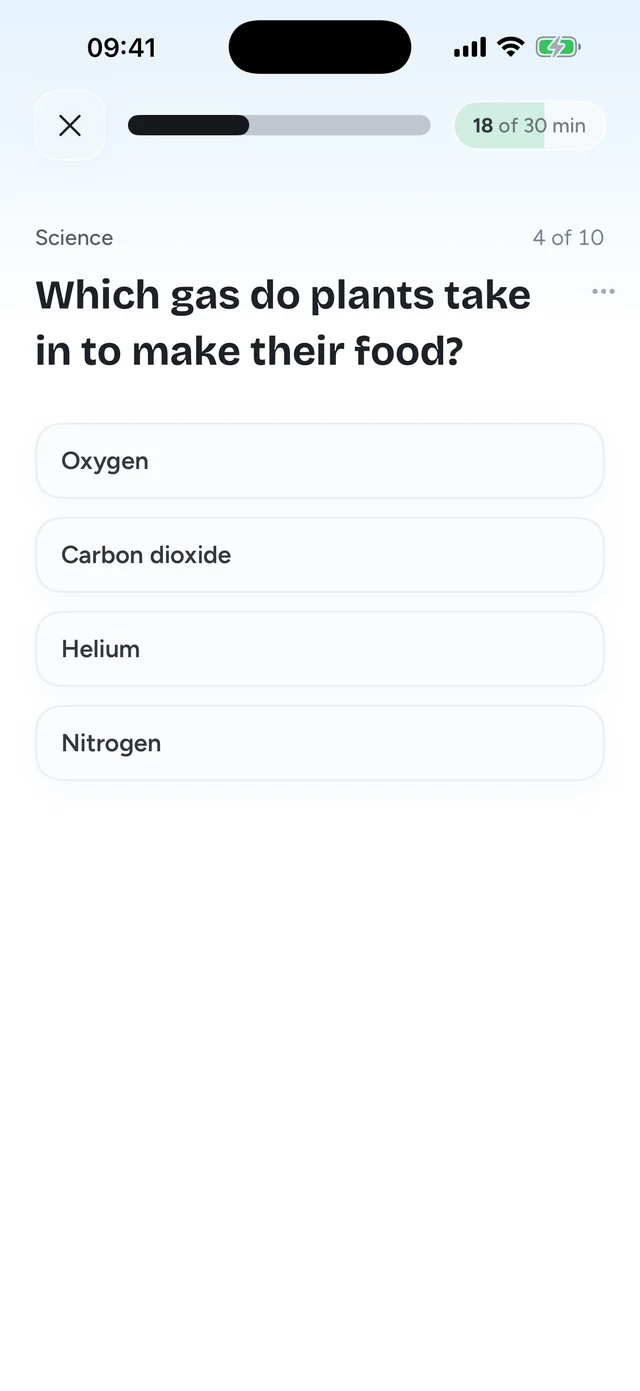
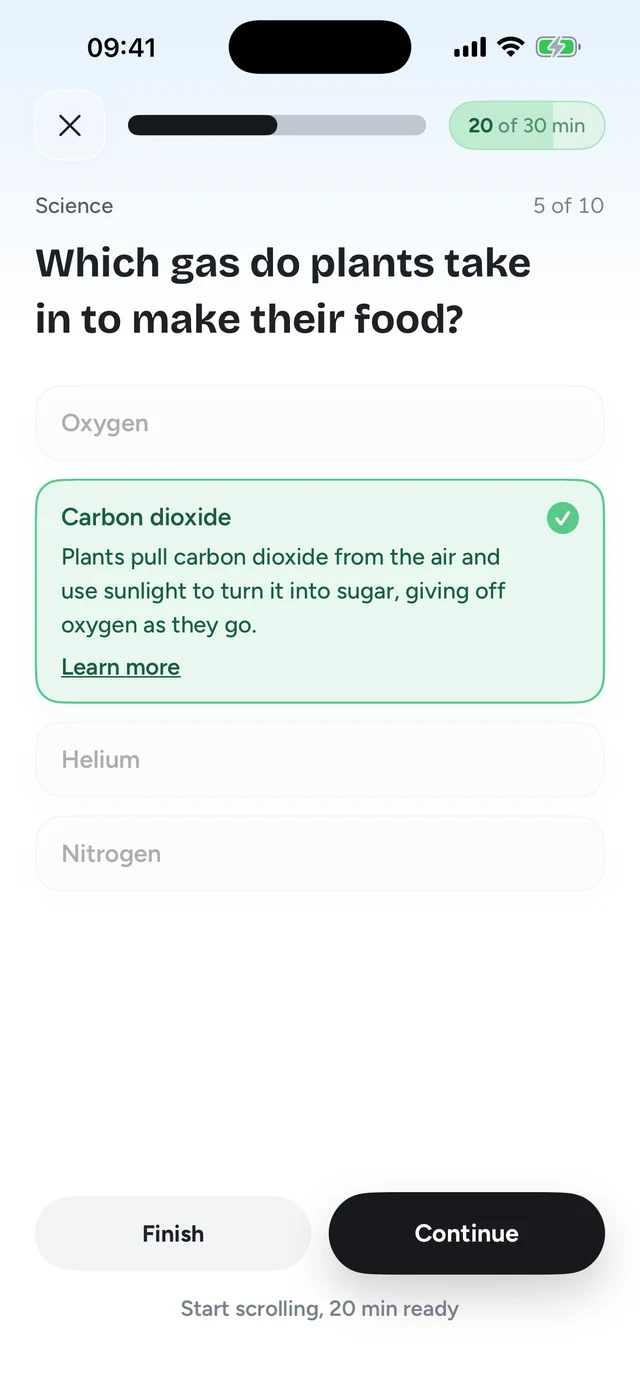
The idea is that a wall gives you nothing, so you look for ways around it. A question gives you something, so you mostly just answer it. It's not a vault (it runs on Screen Time like every other iPhone blocker), but there's less reason to fight it, because every unlock leaves you knowing something new.
Which one should you use?
- You lose track of time but stop when reminded: Screen Time limits are enough, and free.
- You need a hard stop for deep work: Opal's Hard Mode or Brick.
- You open apps on reflex: a pause app like one sec, or a Shortcuts automation.
- You've tried limits and blockers and keep tapping past them: Quizlock, so the unlock costs a right answer instead of a tap.
For the full ranking with who each app suits, see the best app blockers for iPhone.
How do I block an app on my iPhone?
Use Screen Time. On iOS 27, go to Settings, Screen Time, Time Allowances. On iOS 26, go to Settings, Screen Time, App Limits, Add Limit. Add a Screen Time passcode so the limit can't be ignored.
How do I block apps on iPhone without Screen Time?
Focus modes can silence an app's notifications and hide it from a Home Screen page, and a Shortcuts automation can run when an app is opened. Neither fully blocks the app. Blocker apps on iPhone build on Apple's Screen Time system too.
How do I block apps on iPhone with a passcode?
Set a Screen Time passcode. On iOS 27: Settings, Screen Time, Manage Screen Time, Lock Screen Time Settings. On iOS 26: Settings, Screen Time, Lock Screen Time Settings. Ask someone else to choose it.
Can I block an app for a set time on iPhone?
Yes. Use a Screen Time Schedule on iOS 27, or Downtime on iOS 26, to make apps unavailable during certain hours.
What's the best app blocker for iPhone?
It depends on how you fail. For hard stops, Opal or Brick. For reflex opens, one sec. If you keep tapping past blocks, Quizlock makes each unlock cost a right quiz answer, and you learn something on the way in.