


If you want to know how to block TikTok on iPhone, start by deciding what "block" means for you. Some people want it gone. Most want less of it: no TikTok in bed, a cap of half an hour a day, or no more opening it every time they unlock the phone. Each of those has a different best fix.
Below are the built in options first, with menu names from Apple's iPhone User Guide. iOS 27 changed how Screen Time works, so we give the iOS 26 path as well. Then we cover what a dedicated TikTok blocker adds.
Limit TikTok with Screen Time on iOS 26
On iOS 26 you can put a limit on TikTok by itself. This is the simplest way to limit TikTok screen time to a set amount each day.
- Open App Limits
Go to Settings, Screen Time, App Limits, then tap Add Limit. If Screen Time is off, turn on App & Website Activity first.
- Pick TikTok
Tap into a category to see its apps, and select TikTok. If you pick other apps too, they all share the same time budget.
- Set the time
Tap Next and set how long you get each day. Use Customize Days if weekends should be different.
To block TikTok at certain hours instead, use Downtime. Tap Downtime, then Scheduled, and set start and end times. Turn on Block at Downtime so blocked apps can't be opened during downtime.
Limit TikTok with Screen Time on iOS 27
iOS 27 replaced App Limits with Time Allowances, which work by category. You set a daily total for the phone and an allowance for categories like Social Media or Entertainment. Apple's guide says you can use apps in a category until they reach the category's allowance or the daily total.
- Open Time Allowances
Go to Settings, Screen Time, Time Allowances.
- Find TikTok's category
Tap Manage Categories, tap a category, and look for TikTok in its list of apps.
- Set the allowance
Back under Time Allowances, tap that category and drag the slider to set how much time it gets each day.
The catch is that the allowance covers the whole category, so other apps in it share TikTok's time. To block TikTok at certain hours, use Screen Time Schedule: turn on Schedule, tap Add Schedule, choose the days, and pick which categories each time window allows. Apple notes these features need iOS 27 or later on all your Apple devices.
Make the limit stick
Whichever version you're on, Apple's guide says that by default, Screen Time limits can be ignored once reached. You get an Ignore Limit button and TikTok opens again. To stop that, set a Screen Time passcode:
- iOS 27: Settings, Screen Time, Manage Screen Time, Lock Screen Time Settings.
- iOS 26: Settings, Screen Time, Lock Screen Time Settings.
It only works if somebody else picks the code. If you know it, you'll type it. Our guide on how to turn off Ignore Limit goes into why, and what to try instead.
Quiet TikTok with a Focus
A Focus doesn't block TikTok. It stops TikTok from calling you back. Under Settings, Focus, pick a Focus such as Sleep or Personal and leave TikTok off the list of apps allowed to send notifications. You can also link the Focus to a Home Screen page without TikTok on it, and have it turn on at a set time.
That helps more than it sounds. A lot of sessions start with a notification. But if you open the app yourself, Focus won't stop you.
Delete TikTok, or move it off your Home Screen
The bluntest fix: touch and hold TikTok, tap Remove App, then Delete App, and confirm. Apple's guide says this removes the app and its data from your iPhone. Your TikTok account isn't deleted, so you can come back later.
A softer version is to tap Remove from Home Screen instead. TikTok moves to App Library and still works, but your thumb won't land on it every time you unlock the phone. Plenty of TikTok sessions start with nothing more than seeing the icon.
Deleting works for some people for good. For others it lasts a week, until a friend sends a video and the app is back in thirty seconds.
Use a TikTok blocker that asks for a right answer
Most TikTok blockers on iPhone use Apple's Screen Time system to do the actual blocking. Where they differ is what it takes to get back in: waiting out a timer, a pause, tapping a physical device.
Quizlock, which we make, asks a question. You lock TikTok, and any other apps you choose. When you open TikTok, you get a quiz question on a topic you picked. Answer right and you earn 2 minutes. Minutes collect in a wallet that holds up to 30, and when they're gone, TikTok locks again.
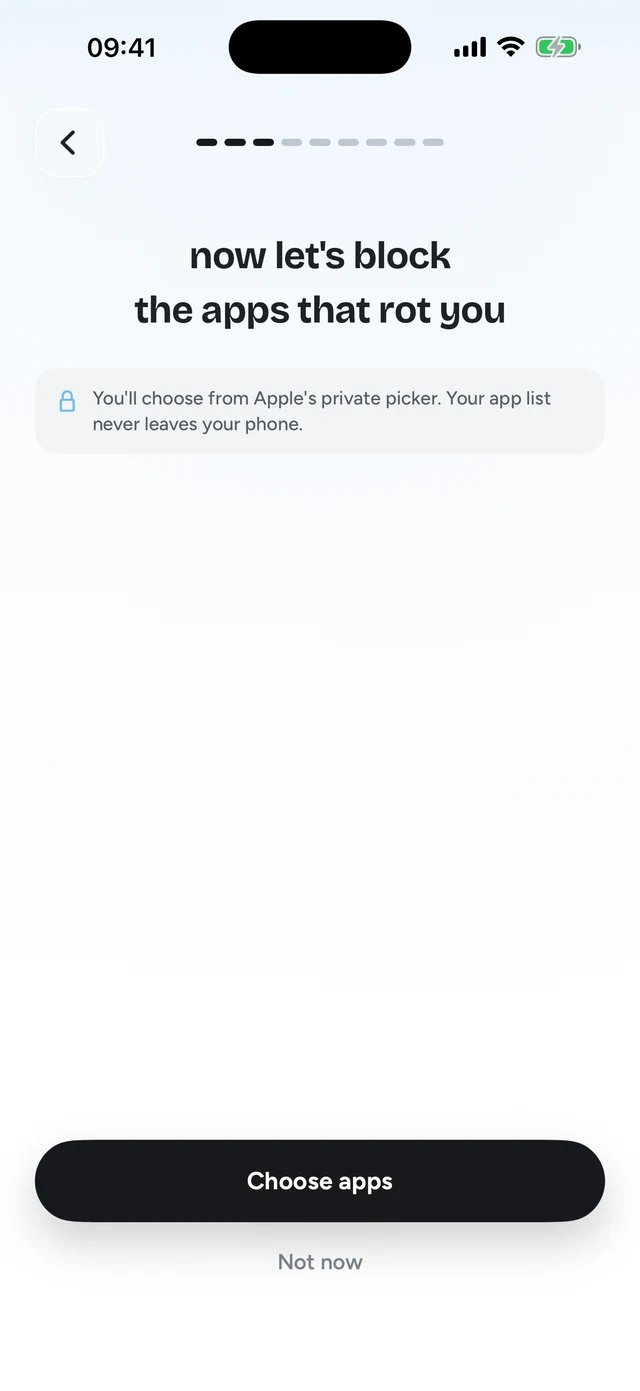
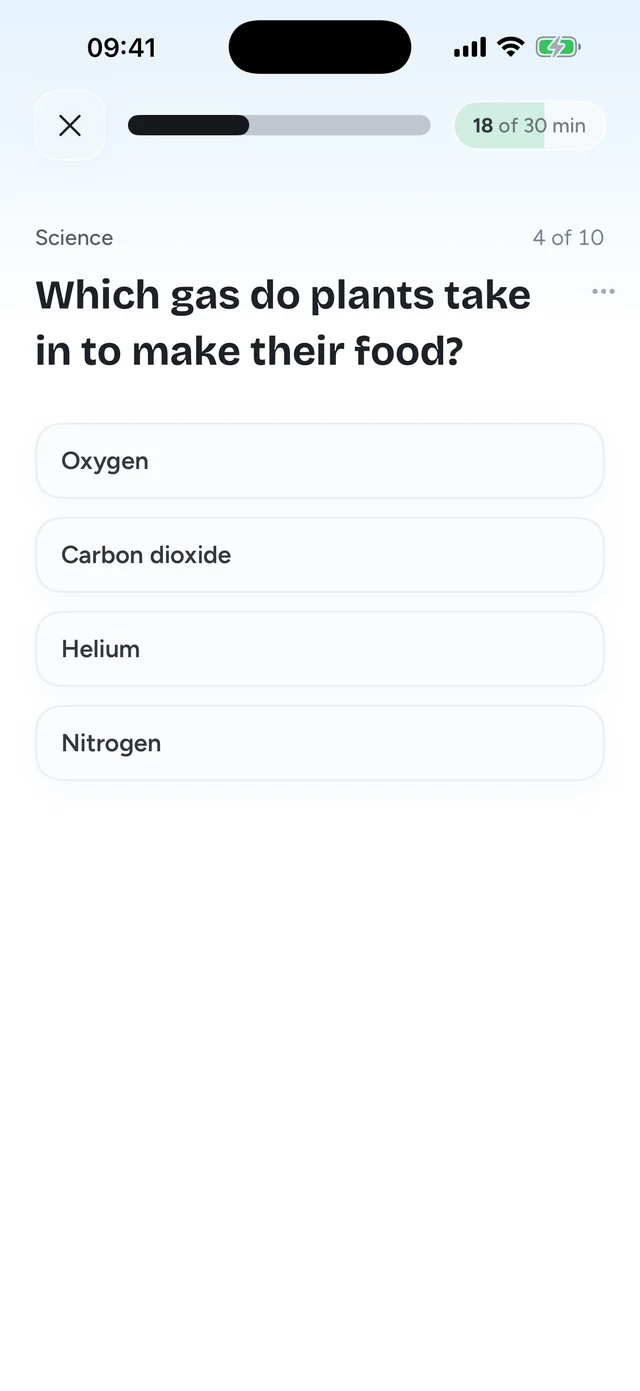
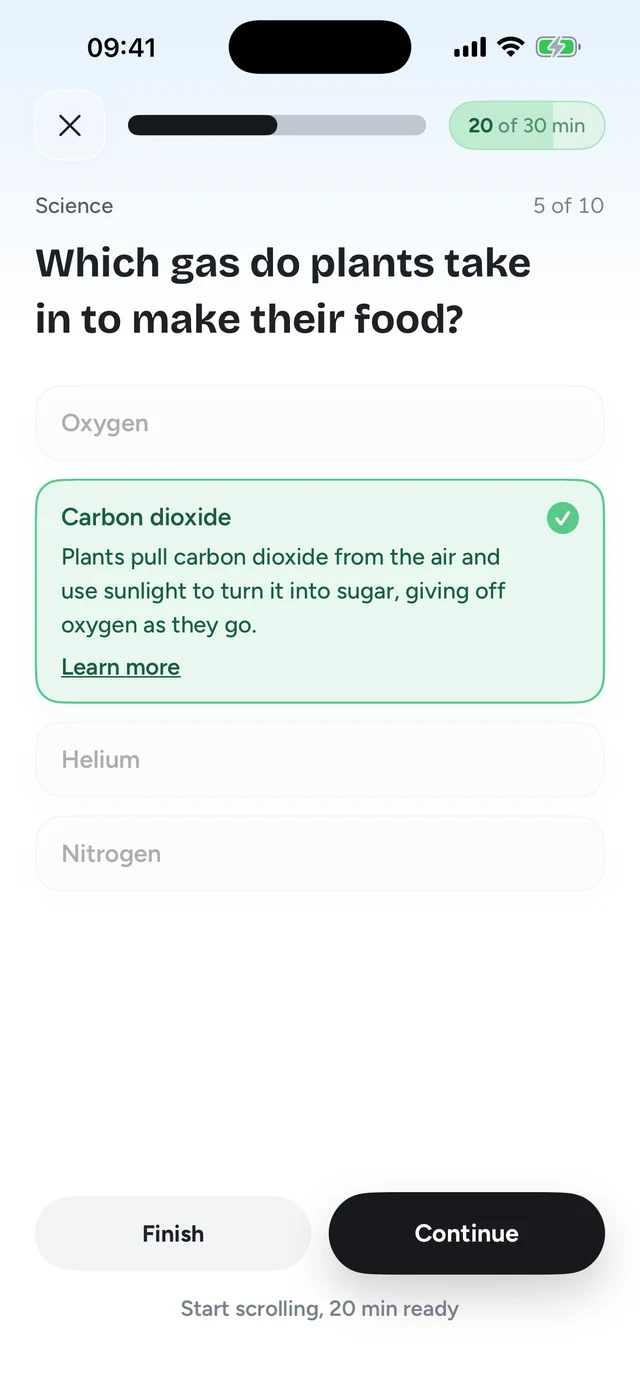
This gets around the two main problems with blocking TikTok. Unlike a limit, there's no button to tap past: you have to read and think for a moment, so you can't do it half asleep. Unlike deleting the app, you can still watch the video your friend sent. You just answer first. It runs on Screen Time, so it isn't impossible to get around, but there's not much to gain from trying.
Topics can be anything you type, like Spanish or US history. You can also make quizzes from your own PDFs, photos of notes and web links, which is handy if you have an exam coming up. Quizlock is iPhone only, $69.99 a year with a 7-day free trial, or $12.99 a month.
Step 3 of 3Answer right, earn scrolling time
Which option should you pick?
| Feature | Quizlock | Screen Time limit | Deleting TikTok |
|---|---|---|---|
| Stops reflex opens | Yes, each open needs a right answer | Only once the limit is used up | Yes, until you reinstall |
| Can still watch a video a friend sends | Yes, after one question | Until the limit runs out | No |
| Easy to skip | No button to tap past | Yes, unless someone else holds the passcode | Reinstalling takes a minute |
| Cost | $69.99/year, 7-day free trial | Free | Free |
- You just lose track of time: a Screen Time limit is enough.
- You want TikTok gone for a while: delete it.
- It's the notifications that get you: a Focus.
- You open it on reflex and tap past every limit: a blocker like Quizlock.
The same steps work for Instagram, YouTube or any other app. For every built in option in one place, see how to block apps on iPhone. If TikTok is where your evenings go, our guide on how to stop doomscrolling has more ideas.
How do I block TikTok on my iPhone?
On iOS 26, go to Settings, Screen Time, App Limits, Add Limit, and choose TikTok. On iOS 27, set a Time Allowance for the category TikTok is in. Add a Screen Time passcode someone else picks so the limit can't be ignored.
How do I limit TikTok screen time?
Set a daily limit in Screen Time. On iOS 26 you can limit TikTok on its own. On iOS 27, Time Allowances work by category, so TikTok shares its allowance with other apps in the same category.
How do I block TikTok at night?
Use Downtime on iOS 26 with Block at Downtime turned on, or a Screen Time Schedule on iOS 27. A Sleep Focus that silences TikTok's notifications helps too.
What is the best TikTok blocker for iPhone?
It depends on how you use TikTok. If a Screen Time limit doesn't stop you, Quizlock locks TikTok and asks a quiz question before it opens. A right answer earns 2 minutes.
Does deleting TikTok delete my account?
No. Deleting the app removes it and its data from your iPhone, but your TikTok account stays. You can reinstall and log back in.