Most people who set up Screen Time limits find out the same thing within a week. The limit is a suggestion. When the time runs out, iOS shows a screen with an hourglass and a button, and that button is the whole problem. Tap Ignore Limit, pick One More Minute or a longer option, and the app opens again. If you want to know how to turn off Ignore Limit on Screen Time, the short answer is a passcode that someone else picks.
This guide covers why Apple built it that way, the settings that actually remove the button, and why even a perfect setup tends to fall apart when the only person holding the passcode is you.
Why Ignore Limit exists at all
Apple is upfront about it. Its own iPhone guide says that by default, Screen Time limits can be ignored once reached. That is a design choice, not a bug. Screen Time was built as a reminder for adults and a control for parents. For adults, Apple assumes you are the boss of your own phone, so the limit tells you the time is up and then lets you decide.
That works fine if your problem is losing track of time. It does not work if your problem is the reach itself, the thumb that opens TikTok before your brain has an opinion. A limit screen that asks you to make a decision is easy to tap past, because the tap costs you nothing. one sec, another screen time app, has a whole post on this and puts it well: tapping one more minute is muscle memory.
How to remove Ignore Limit
There is no single switch called "remove Ignore Limit". What removes it is a Screen Time passcode. Once a passcode is set, getting past a block needs that passcode. The menus moved in iOS 27, so here are both versions, taken from Apple's iPhone User Guide.
On iOS 27
- Set your limits
Open Settings, tap Screen Time, then Time Allowances. Set a daily total and an allowance for categories like Social Media or Entertainment.
- Add a schedule if you want one
Tap Screen Time Schedule, turn on Schedule, then tap Add Schedule to create time windows, for example a work block and an evening block.
- Lock the settings
Tap Manage Screen Time, then Lock Screen Time Settings, and enter a four digit passcode twice.
On iOS 26
- Create the limit
Open Settings, tap Screen Time, then App Limits and Add Limit. Pick a category or tap into it to pick single apps, then set the time.
- Set a passcode
In Screen Time, scroll down and tap Lock Screen Time Settings. Enter a four digit passcode twice.
- Block, don't dim, during Downtime
Tap Downtime, set a schedule, and turn on Block at Downtime. Apple's guide says that with this on, restricted apps can't be opened during downtime. With it off, you just get a reminder and can keep going.
One step matters more than all the others: someone else should choose the passcode. A partner, a roommate, a friend who won't give it to you at midnight. Let them type it in while you look away.
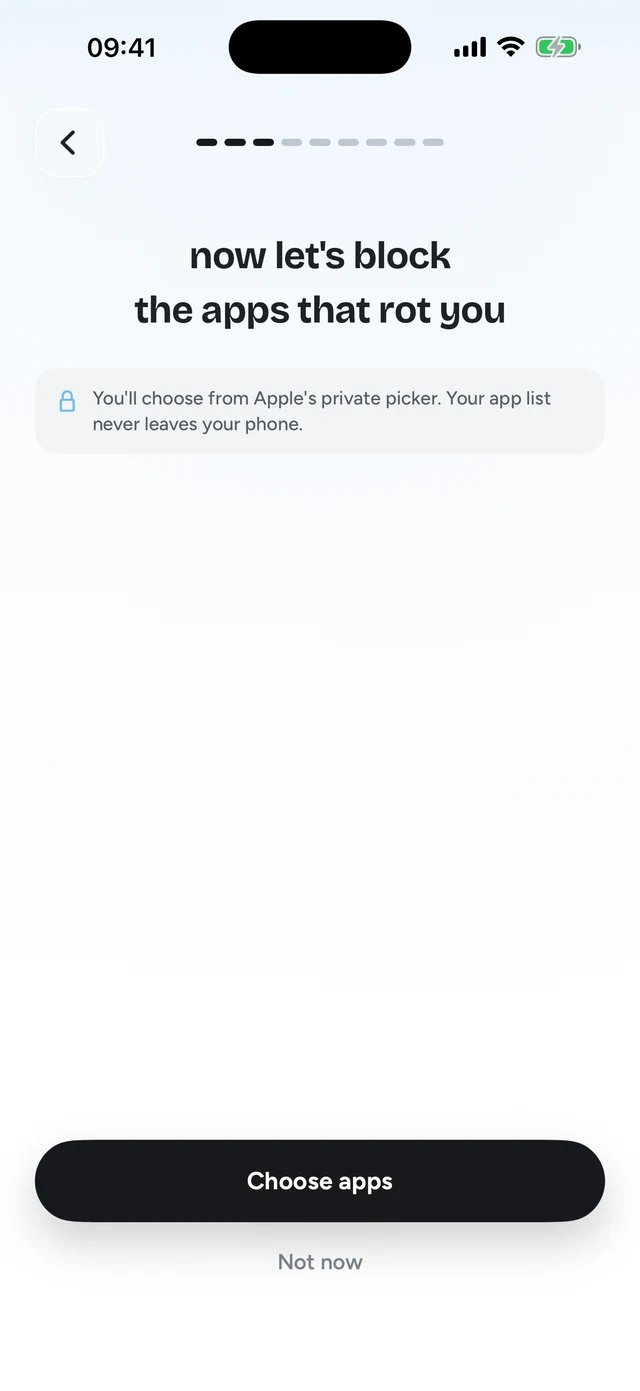
Step 1 of 3Pick the apps that eat your time




Can you take the button away for good?
Only for as long as the passcode stays secret. Apple doesn't offer a setting that says "never show Ignore Limit". When a limit runs out and a Screen Time passcode is set, the screen asks for that passcode instead of letting you tap through. That's the whole mechanism.
Which means you can't really get rid of it on your own. Anyone who knows the passcode can still go past the limit, and anyone who knows it can also change it or remove the passcode later in the same settings. If you picked it, you know it.
So the realistic options are these. Hand the passcode to someone you trust and accept that you'll have to ask them. Or turn off Ignore Limit by replacing it with a gate you don't mind going through, which is the idea behind the last section of this guide.
Why it still fails for adults
Say you did everything right. The passcode is set, the limits are on. Here is where it usually breaks.
- You know the passcode. If you set it yourself, you will type it in. It takes four taps instead of one, and after a few days those four taps are muscle memory too.
- You can reset it. Apple offers Screen Time Passcode Recovery through your Apple Account, which is good if you forget it and bad if you are trying not to know it.
- Asking someone else gets old. Handing the passcode to a friend works until you need an app for something real, have to text them for it, and give up on the whole setup.
- It is all or nothing. The app is either open or shut. There is no middle where you can have ten minutes of Instagram after you did something useful.
- The block gives you nothing back. You hit a wall, you feel annoyed, and you spend the next hour looking for a way around it. Nothing about the wall makes you want to respect it.
That last one is the deeper issue. A limit is pure loss from your brain's point of view. So your brain treats it like an obstacle to route around, and it is very good at that. If you want the full list of things that go wrong with limits, including real bugs, see Screen Time limits not working.
The better fix: make the minutes cost something useful
The trick that works for a lot of people is to stop asking "can I open this?" and start asking "what do I have to do to open this?". If opening Instagram costs a tiny bit of effort that is also worth something, you stop fighting the rule, because the rule is on your side.
That is how Quizlock works. It uses Apple's same Screen Time system to lock the apps you pick. When you open one, instead of an Ignore Limit button you get a quiz question on a topic you chose: Spanish, chemistry, the history of Rome, whatever you typed in. Answer right and you earn 2 minutes. Minutes go into a wallet that holds up to 30, so a short run of right answers buys a real break.

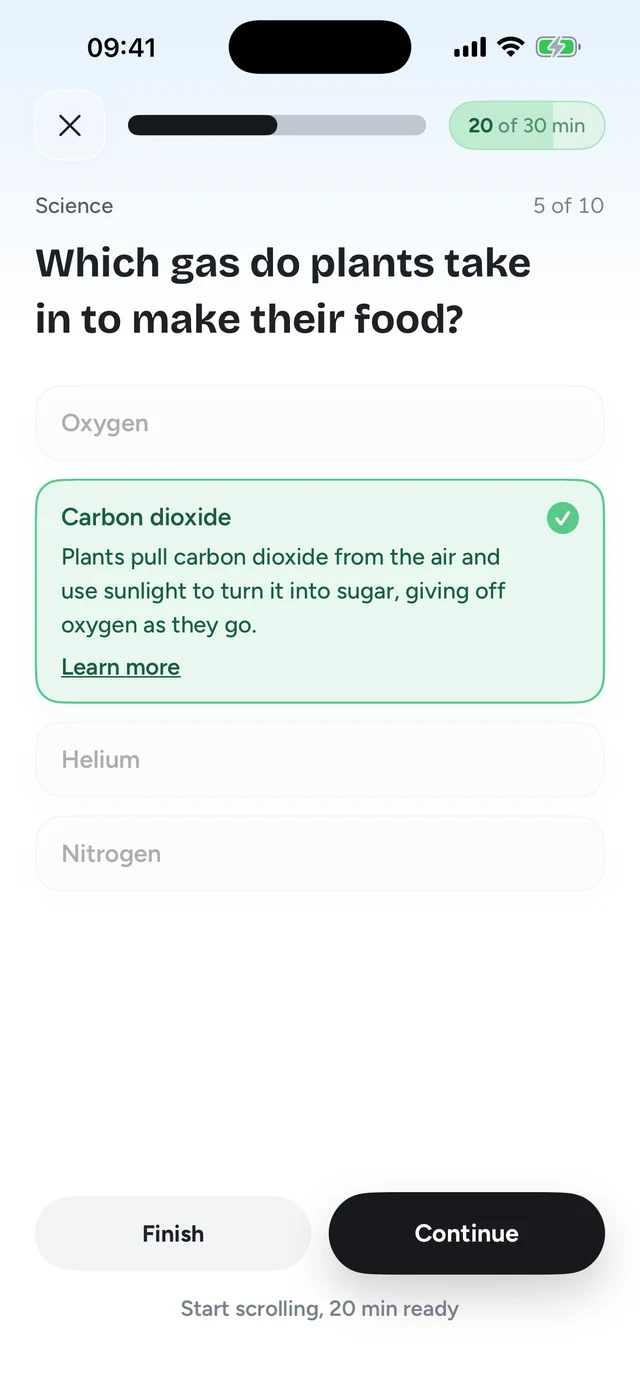
You don't need a friend holding a passcode, because the gate isn't a no. It's a "sure, after this". Can you get around it? It runs on Screen Time, so if you are determined, yes. But most people never feel the need, because the question takes ten seconds and they come out of it knowing something.
- Limit runs out
- Hourglass screen appears
- Tap Ignore Limit
- Back in the feed
The block costs one tap and gives nothing back.
 Quizlock
- Open a locked app
- Quizlock asks one question
- Answer right, earn 2 minutes
- Scroll, a fact richer
The gate costs ten seconds and pays you in something you keep.
If you have been comparing options, we wrote a straight Quizlock vs Screen Time comparison, and a wider look at the best app blockers for iPhone.
How do I turn off Ignore Limit on iPhone?
Set a Screen Time passcode. On iOS 26, go to Settings, Screen Time, Lock Screen Time Settings. On iOS 27, go to Settings, Screen Time, Manage Screen Time, Lock Screen Time Settings. Have someone else choose the passcode or it won't hold.
Why can I still tap Ignore Limit after setting a limit?
Because Apple lets adults ignore limits by default. Its own guide says Screen Time limits can be ignored once reached unless you add a passcode and choose to block apps.
Can I remove One More Minute without a passcode?
Not with Screen Time alone. The passcode is what turns the limit from a reminder into a block. Apps like Quizlock replace the button with a question you answer to earn time instead.
What if I forget my Screen Time passcode?
If you set up Screen Time Passcode Recovery, you can reset it with your Apple Account. That also means you can reset it on a weak night, which is worth knowing.
Is there a Screen Time alternative that's harder to ignore?
Quizlock locks your apps through Screen Time and asks you a quiz question before each unlock. A right answer earns 2 minutes. It's $69.99 a year with a 7-day free trial.