"Screen Time not working" covers two very different complaints. One is "the limit never showed up". The other is "the limit showed up and I went straight past it". The fixes are completely different, so start by figuring out which one you have.
The settings below come from Apple's iPhone User Guide. In iOS 27 Apple reorganized Screen Time around Time Allowances and a Screen Time Schedule, where iOS 26 had App Limits and Downtime, so where the menus differ we give both.
Part 1: when the limit doesn't show up
- Check that Screen Time is actually on
Open Settings and tap Screen Time. If you see an option to Turn On App & Website Activity, it is off. Apple notes that turning it off also turns off Downtime, App Limits and Always Allowed, so if it got switched off at some point, every limit went with it.
- Look at Always Allowed
In Screen Time, tap Always Allowed. Apps on this list stay available during downtime and after you hit your limits. It is easy to add something there during setup and forget.
- Check Share Across Devices
On iOS 27 it lives under Manage Screen Time; on iOS 26 it is on the main Screen Time page. When it's on, limits and schedules apply to your iPhone, iPad and Mac. When it's off, each device keeps its own settings, so a limit you set on the iPad won't follow you to the phone. On iOS 27 Apple says every device needs iOS 27, iPadOS 27 or macOS 27 for syncing to work.
- Re-read what the limit covers
On iOS 27, Time Allowances work by category, with a daily total on top. You can use apps until they reach the category's allowance or the daily total. On iOS 26, a limit set on several apps or categories at once is one shared budget, not a separate one for each app.
- Check the schedule
On iOS 27, Time Allowances can be set to Match Screen Time Schedule, which ties them to the time windows you created. If an app is free in one window, the limit you expected may simply not apply then.
- Update, then restart
Install the latest iOS from Settings, General, Software Update, and restart the phone. Screen Time bugs come and go between releases, and a lot of one off glitches clear up after a restart.
- Turn Screen Time off and on again
If nothing else works, turn off App & Website Activity and turn it back on. Your limits may not survive this, so note them down first and set them up again if they're gone.
App limits not working
App limits on iPhone fail in a few predictable ways, and most of them come from how the limit was set up rather than from a bug. If Screen Time app limits are not working for one app in particular, check these first.
- The limit is shared. On iOS 26, Apple's guide says that if you select several apps or categories in one limit, the time applies to all of them together. Ten minutes of YouTube can use up the hour you meant for Instagram.
- iOS 27 limits work by category. Time Allowances cap a category, like Social Media, plus a daily total. An app keeps working until its category or the daily total runs out. Tap Manage Categories, then a category, to see which apps sit in it.
- The website counts too. On iOS 27, if an app declares an associated website, the allowance covers both. Going to the site in Safari still spends the same minutes.
- The app is Always Allowed. Anything on that list ignores limits and schedules.
- The limit appeared and you tapped past it. That's Ignore Limit, which is on by default. See Part 2 below.
Part 2: when the limit shows up and you skip it
If the hourglass screen appears and you tap past it, Screen Time is working. Apple's guide says it directly: by default, Screen Time limits can be ignored once reached. The Ignore Limit button is a feature. To turn the limit into a real block, you need a Screen Time passcode.
- iOS 27: Settings, Screen Time, Manage Screen Time, Lock Screen Time Settings.
- iOS 26: Settings, Screen Time, scroll down, Lock Screen Time Settings. Then under Downtime, turn on Block at Downtime so apps are blocked, not just dimmed with a reminder.
We go through this step by step in how to remove Ignore Limit, including why the passcode only holds if somebody else picks it.
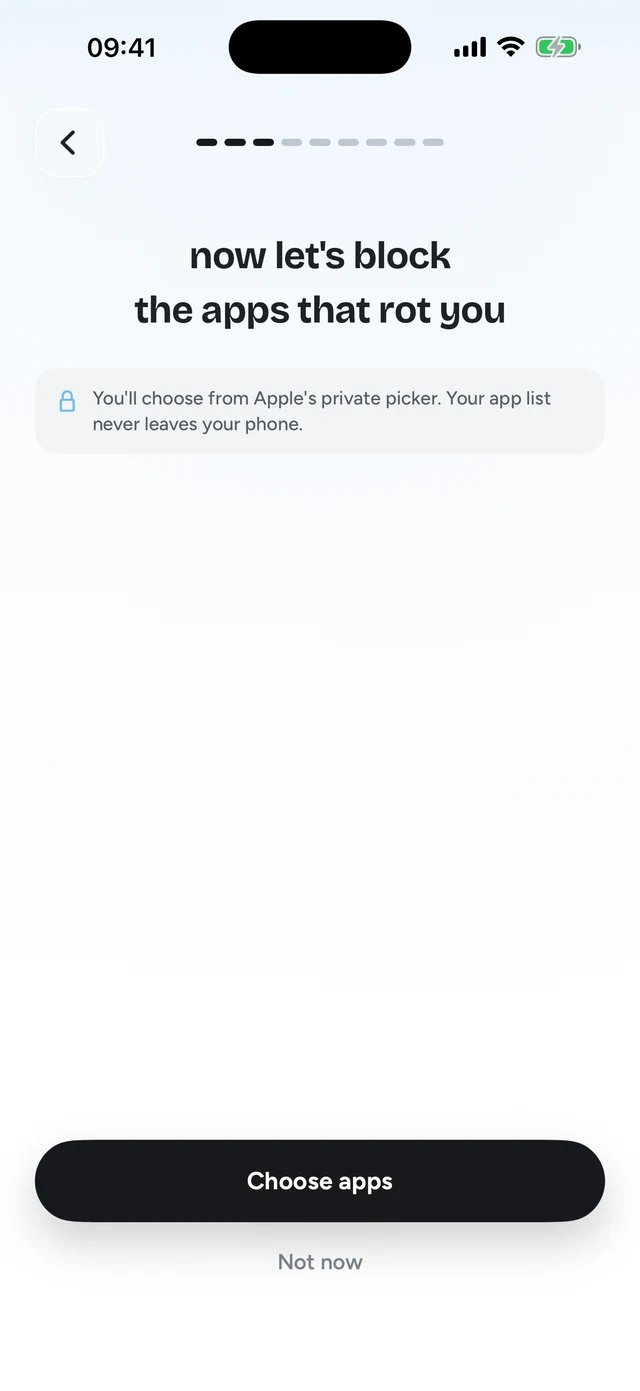
Step 1 of 3Pick the apps that eat your time




Bug or willpower? How to tell
Here's a simple test. Think about the last time the app opened past your limit, and ask what your finger did.
- No limit screen at all, ever: probably a setting. Go back through Part 1.
- No limit screen on one day, fine the next: possibly a bug. Update iOS and restart.
- Limit screen showed up, you tapped through: not a bug. Screen Time is doing what it was built to do.
- You typed your own passcode: also not a bug. The setup is working; the plan isn't.
If you landed in the last two, no setting will fix it. That's not a character flaw either. A limit asks you to make a hard choice at the exact moment you are worst at making it: tired, bored, phone already in hand. And the limit screen offers nothing in return for saying no. So most of the time you don't.
What works when willpower doesn't
The fix that tends to stick is changing what the gate asks of you. Instead of "stop", it says "do one small useful thing, then go ahead". That is the idea behind Quizlock.
Quizlock uses Apple's Screen Time system to lock the apps you choose, like Instagram, TikTok or YouTube. When you open one, you get a quiz question on a topic you picked. A right answer earns 2 minutes of use. Your minutes collect in a wallet that holds up to 30. You can pick any topic you can type, or make quizzes from your own PDFs, photos of notes and web links.
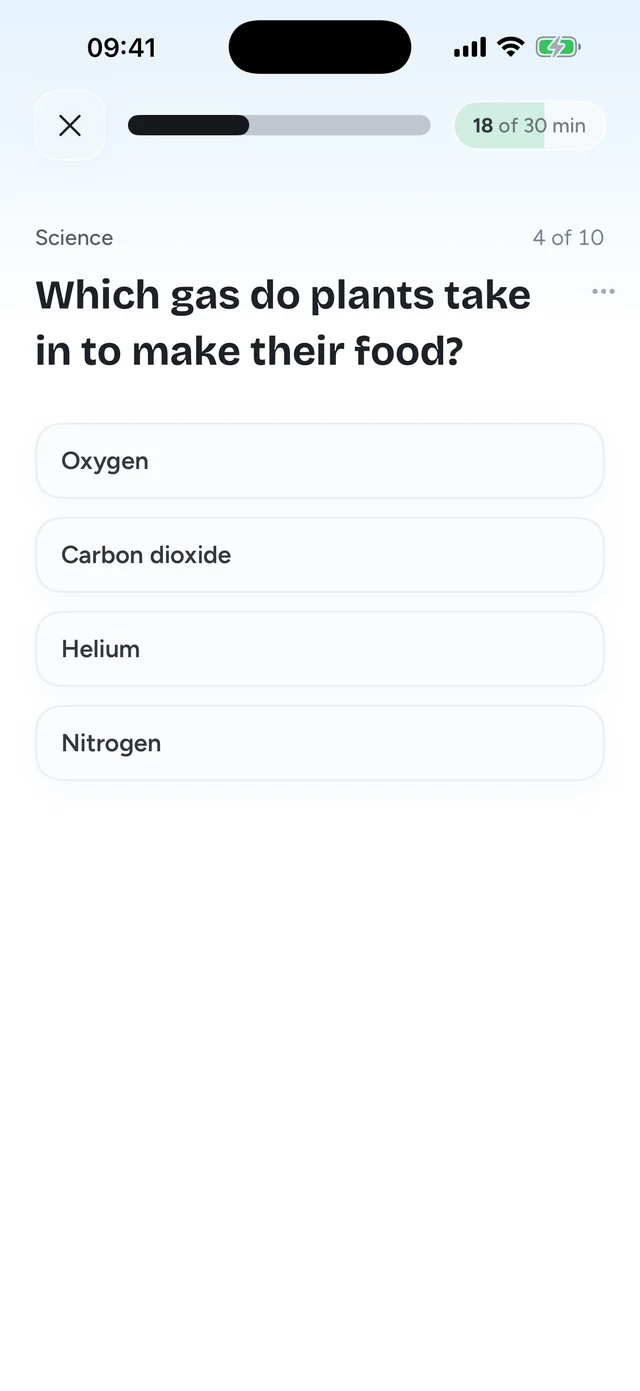
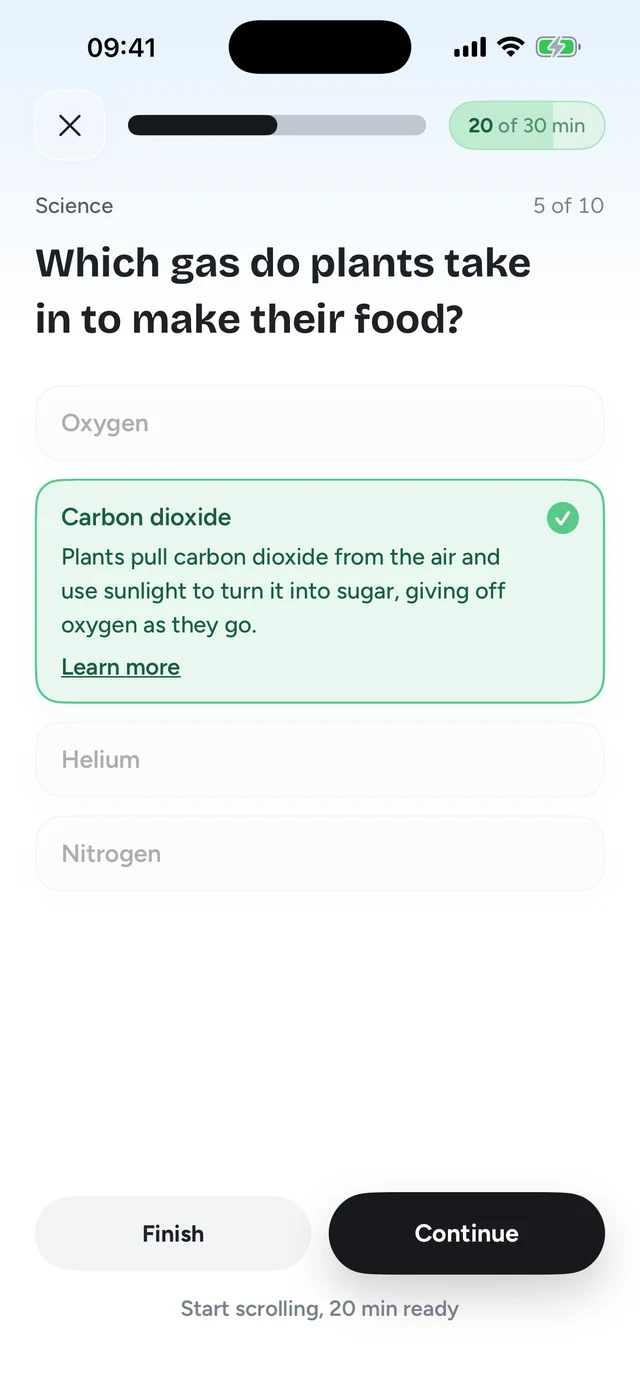
There's no button to ignore, because there is nothing to ignore. You can still use the app. You just have to be paying attention for ten seconds first, and that alone breaks a lot of autopilot opens. It is not unbreakable (it runs on Screen Time, like every iPhone blocker), but people tend to stop trying to break it once the gate gives something back.
For a side by side, see Quizlock vs Screen Time. If you want the wider view, our guide on how to block apps on iPhone covers every built in option and the main apps, and how to reduce screen time has tips that don't depend on limits at all.
Why is my Screen Time limit not working?
Check that App & Website Activity is on, that the app isn't in Always Allowed, and that Share Across Devices is set the way you expect. If the limit appears and you tap past it, that's by design: limits can be ignored unless you set a Screen Time passcode.
Why does Screen Time let me ignore the limit?
Apple lets adults ignore their own limits by default. A Screen Time passcode turns the limit into a block. On iOS 26, also turn on Block at Downtime.
Why are my Screen Time limits not syncing between iPhone and iPad?
Share Across Devices needs to be on. On iOS 27 it's under Settings, Screen Time, Manage Screen Time, and Apple says all your devices need the 27 releases for it to work.
Does restarting fix Screen Time limits not working?
Sometimes. Update iOS and restart first. If that fails, turn App & Website Activity off and on again, then set your limits back up.
What should I use if Screen Time limits don't stop me?
Something that changes the trade instead of adding a wall. Quizlock asks a quiz question before a locked app opens, and a right answer earns 2 minutes. It's $69.99 a year with a 7-day free trial.