Most advice on how to reduce screen time is written for parents. This one is for you, the adult who picked up the phone to check the weather and somehow ended up forty minutes into a stranger's kitchen renovation.
The tips below start with the cheap, free ones and get stronger as you go. You don't need all twelve. Pick three that fit your day. If you've already tried the first ten and they didn't hold, skip to the last one.
1. Look at your real numbers first
Open Settings, Screen Time. You'll see your daily average and which apps take the most of it. On iOS 26, tap See All App & Website Activity and switch between Day and Week for the breakdown. Don't try to fix anything yet. Just notice which two or three apps take the most time. That's usually where all the trouble is.
2. Go after one or two apps, not the whole phone
Maps, messages and your banking app aren't the problem. Your phone time is probably fine apart from the one or two apps with an endless feed. Aim every tip below at those. A plan that targets TikTok will hold. A plan to "use my phone less" usually lasts until Thursday.
3. Turn off notifications you didn't ask for
Every buzz is an invitation to pick the phone up, and once it's in your hand, one app leads to the next. Go to Settings, Notifications and turn off alerts for every app that isn't a person talking to you. Likes, "you might have missed" and suggested posts can all go.
4. Move the feeds off your home screen
Touch and hold the app, tap Remove App, then Remove from Home Screen. It stays on your phone in the App Library, but your thumb no longer lands on it every time you unlock. A lot of scrolling starts with nothing more than seeing the icon.
5. Make the screen gray
Go to Settings, Accessibility, Display & Text Size, Color Filters, turn it on and pick Grayscale. Glossy videos and red badges lose most of their pull. It's a bit odd for the first day. Some people keep it on all the time, some only after dinner.
6. Charge the phone outside the bedroom
Late night and first thing in the morning are where a lot of screen time hides. If the phone sleeps in the kitchen, you can't scroll in bed. Buy a cheap alarm clock so the phone has no reason to be there. Of everything on this list, it's the one that needs the least willpower once it's set up.
7. Set a daily limit on your worst app
Screen Time can cap how long you spend in an app or category each day. On iOS 27 this is Settings, Screen Time, Time Allowances, where you set a daily total and an allowance per category like Social Media. On iOS 26 it's Settings, Screen Time, App Limits, Add Limit, where you can pick single apps. Our guide on how to block apps on iPhone walks through both.
8. Give the evening a schedule
Limits cap how much. Schedules decide when. On iOS 27, use Screen Time Schedule to create time windows like work and evening, and choose what's available in each. On iOS 26 the same idea is Downtime. An evening window that turns off the feeds an hour before bed is a good place to start.
9. Let someone else hold the passcode
Here's the catch with tips 7 and 8. Apple's own guide says that by default, Screen Time limits can be ignored once reached. You tap Ignore Limit and carry on. A Screen Time passcode removes that option, but only if you don't know it. Ask a partner or a friend to set it. Our guide to turning off Ignore Limit has the steps.
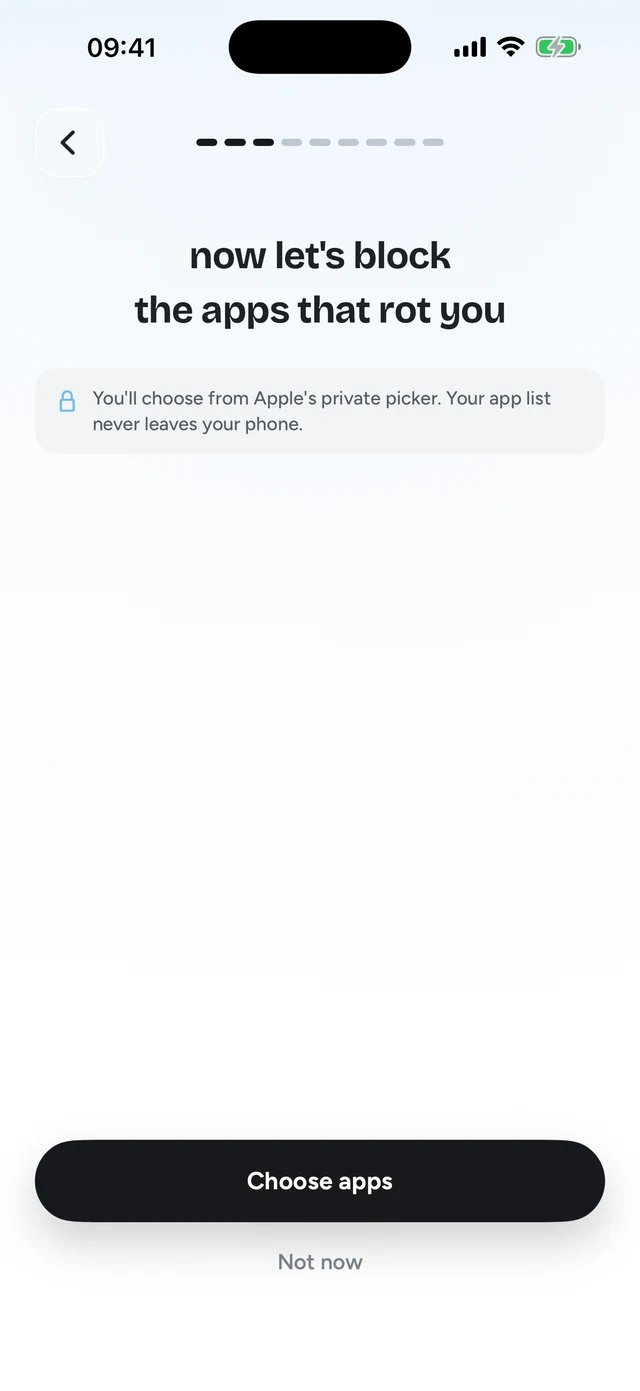
Step 1 of 3Pick the apps that eat your time




10. Delete the app and use the website
If you only need an app now and then, delete it: touch and hold, Remove App, Delete App. Use the site in Safari when you really need it. Mobile websites are usually clunkier than the apps, and for once that's useful.
11. Fill the gap on purpose
Screen time grows in small empty moments: the queue, the kettle, the five minutes before a meeting. Decide now what goes there instead. A paperback in your bag. A podcast queued up. Looking out of the window, even. It only has to be easier to reach than the phone.
12. Make every unlock cost one right answer
This is the tip we built an app around, so weigh it with that in mind. It's also the one that fixes the weak spot in tips 7 to 9: limits you tap past and passcodes you end up knowing.
Quizlock locks the apps you choose through Apple's Screen Time system. When you open one, you get a quiz question on a topic you picked. Answer right and you earn 2 minutes. Minutes collect in a wallet that holds up to 30. Topics are anything you type, and you can also make quizzes from your own PDFs, photos of notes and web links.

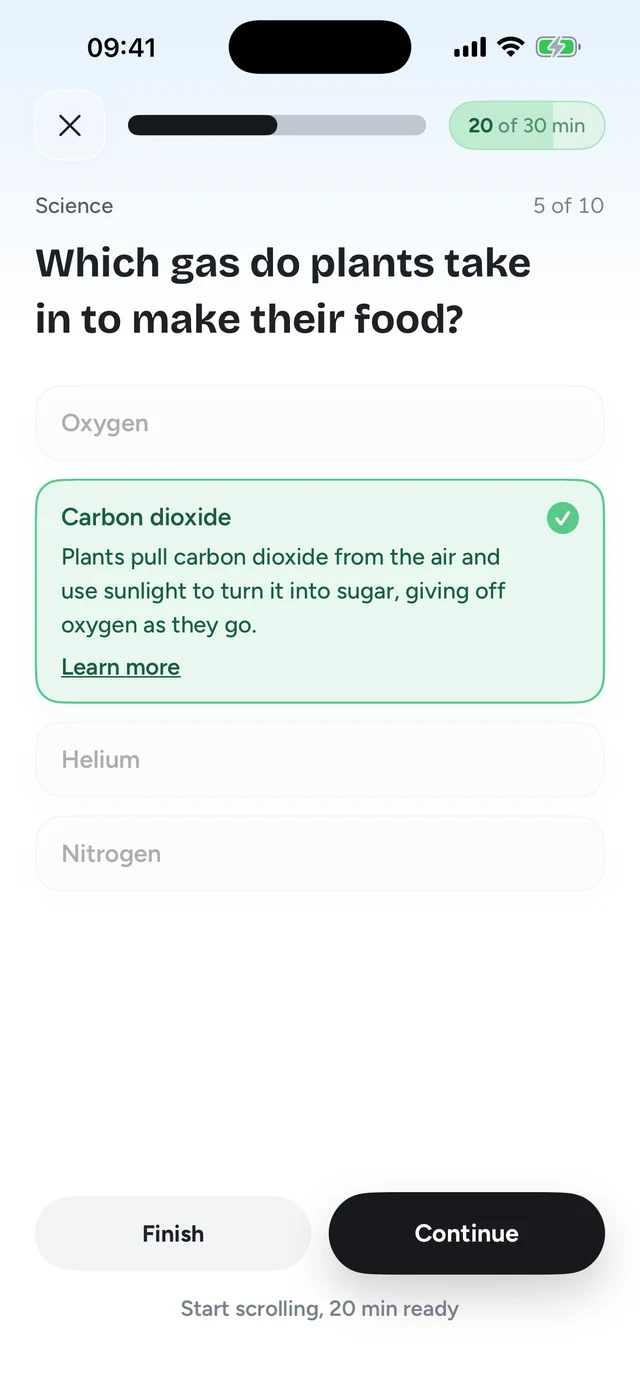
Why it tends to stick: a limit screen asks you to say no at the exact moment you're worst at it. A question asks you to say "sure, after this". You can't answer on autopilot, so the reflex open turns into a moment of attention. And you get something back, so there's little reason to fight it. It runs on Screen Time, so a determined person can get around it. Most people just answer.
- Limit runs out
- Hourglass screen
- Tap Ignore Limit
- Another 40 minutes
Saying no is pure cost, so you stop saying it.
 Quizlock
- Open a locked app
- One quiz question
- Right answer, 2 minutes
- Scroll, then it locks again
Each unlock costs ten seconds of attention and leaves you knowing something.
A one-week plan
- Day 1: look
Check Screen Time and write down your two worst apps.
- Day 2: quiet the phone
Turn off non-human notifications and move those two apps off the home screen.
- Day 3: move the charger
Phone sleeps outside the bedroom from tonight.
- Day 4: add a gate
Lock the two apps, with a Screen Time limit and a passcode someone else holds, or with Quizlock so each scroll costs a right answer.
- Day 7: look again
Compare the week with the one before. Keep what worked and drop what didn't.
If doomscrolling at night is the main problem, our guide on how to stop doomscrolling goes deeper on evenings. If you want to compare tools first, see the best app blockers for iPhone.
How can I reduce my screen time fast?
Pick your one or two worst apps, turn off their notifications, move them off the home screen and charge your phone outside the bedroom. Then put a gate on those apps, like a Screen Time limit with a passcode someone else holds.
How do I see my screen time on iPhone?
Open Settings and tap Screen Time to see your daily average and top apps. On iOS 26, tap See All App & Website Activity for a day or week breakdown.
Why don't Screen Time limits reduce my screen time?
Because Apple lets you ignore them by default. When the limit hits, you can tap Ignore Limit. A Screen Time passcode chosen by someone else turns the limit into a block.
Does grayscale really reduce screen time?
It helps some people, because feeds look a lot duller without color. Turn it on in Settings, Accessibility, Display & Text Size, Color Filters, then pick Grayscale.
What is the best app to reduce screen time?
It depends on what has failed before. If you keep tapping past limits, try Quizlock: it asks a quiz question before a locked app opens and a right answer earns 2 minutes. It's $69.99 a year with a 7-day free trial, or $12.99 a month, on iPhone.