If you're searching for how to lock apps on iPhone, you probably want one of two things. Maybe you hand your phone to a friend to show them a photo and don't want them wandering into your messages or banking app. Or maybe you keep opening Instagram on reflex and want a lock that slows you down.
This guide covers the privacy lock first, because Apple added a proper one in iOS 18. Then the other ways people lock apps, with a password or without Screen Time. Then locking apps for focus, which is a different problem with a different fix. Steps come from Apple's iPhone User Guide for iOS 18, iOS 26 and iOS 27.
Lock an app with Face ID (iOS 18 and later)
Since iOS 18, you can lock almost any app so it needs Face ID, Touch ID or your passcode to open. Apple's guide says information inside a locked app also stays out of other places, such as notification previews, search, Siri suggestions and your call history.
- Find the app
Go to your Home Screen and find the app you want to lock.
- Open the menu
Touch and hold the app icon until the Quick Actions menu opens.
- Lock it
Tap Require Face ID (it says Touch ID or Passcode on phones without Face ID), then tap Require Face ID again to confirm.
From then on, tapping the app asks you to authenticate. Opening it doesn't unlock it for good: Apple says the app locks again after you quit it. To remove the lock, touch and hold the icon and tap Don't Require Face ID.
Two things to know. The lock only applies to that iPhone and doesn't sync through iCloud. And Apple notes that children under 13 in a Family Sharing group can't lock or hide apps.
Hide an app completely
If you don't want an app even visible, you can hide it. In the same menu, tap Require Face ID, then Hide and Require Face ID, authenticate, and tap Hide App. The app leaves your Home Screen, App Library and search results, and moves to a Hidden folder at the bottom of App Library. That folder needs Face ID, Touch ID or your passcode to open.
To see everything you've hidden, go to Settings, Apps, Hidden Apps. To stop hiding an app, open the Hidden folder, touch and hold the app, and tap Don't Require Face ID.
Apple's guide lists a few exceptions. Apps that came with the iPhone can't be hidden, only ones you downloaded from the App Store. Whatever you've set as your default web browser can't be hidden either.
How to lock apps on iPhone with a password
The Face ID lock above falls back to your iPhone passcode, so for most people that's the password lock they're looking for. There isn't a built in way to give one app its own separate password.
The other option is a Screen Time passcode. It's a separate four digit code that stops you, or anyone else, from going past Screen Time limits. Set a limit on an app, then lock the settings. On iOS 27, go to Settings, Screen Time, Manage Screen Time, Lock Screen Time Settings. On iOS 26, it's Settings, Screen Time, Lock Screen Time Settings. Once the limit runs out, the app needs that code to open. Our guide on turning off Ignore Limit explains how to set it up so it holds.
Can you lock apps without Screen Time?
Yes, if what you want is privacy. The Face ID lock and Hidden folder live in the app's own Quick Actions menu, not in Screen Time, and they don't involve any limits.
If you want to lock apps to use them less, it's harder to avoid Screen Time. Apple's limits and schedules live inside it, and most blocker apps on iPhone use Apple's Screen Time system under the hood too. That includes Quizlock. Outside Screen Time, you can delete an app or use a Shortcuts automation that runs when an app opens, but those are speed bumps rather than locks.
| Feature | Quizlock | Face ID lock | Screen Time passcode |
|---|---|---|---|
| Best for | Opening distracting apps less | Keeping other people out | Making limits stick |
| What opens the app | A right answer to a quiz question, 2 minutes per answer | Your face, fingerprint or iPhone passcode | The Screen Time passcode, once the limit runs out |
| Slows you down | Yes, every time | No, Face ID takes a second | Only if someone else knows the code |
| Cost | $69.99/year, 7-day free trial | Free, iOS 18 or later | Free |
Built in features per Apple's iPhone User Guide, October 2026.
Lock apps to stop yourself opening them
Here's the problem with the Face ID lock if your goal is focus: it recognizes you. Lock Instagram and the lock opens in under a second, every time, because it's your face. It was built to keep other people out, not to slow you down.
The Screen Time passcode can work, but only if someone else knows it, and it's all or nothing. You're either in or locked out until tomorrow.
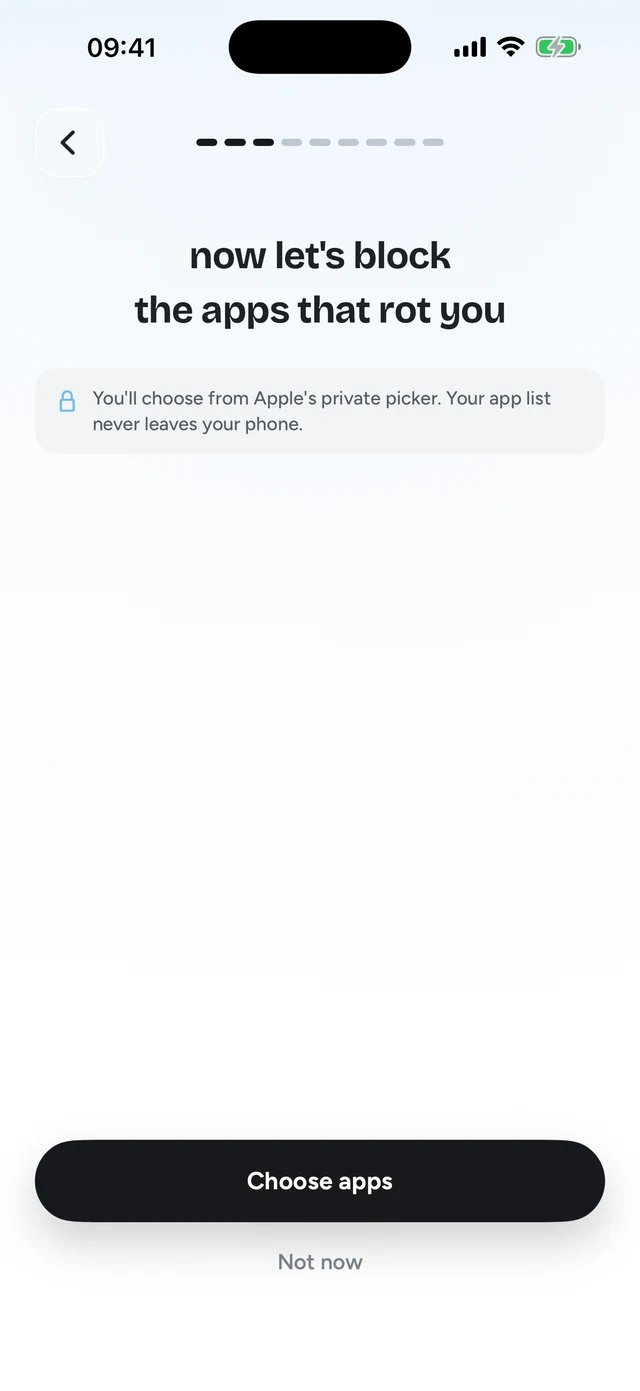
Quizlock takes a middle route. It locks the apps you choose using Apple's Screen Time system. When you open one, you get a quiz question on a topic you picked. Answer right and you earn 2 minutes. Your minutes collect in a wallet that holds up to 30, and the app locks again when they run out.
Step 1 of 3Pick the apps that eat your time




- Pick a topic
Type anything you'd like to learn, like Spanish or anatomy. Or make quizzes from a PDF, a photo of your notes or a web link.
- Pick the apps to lock
Choose the ones you lose time to, like TikTok, Instagram or YouTube.
- Answer to open
Each right answer earns 2 minutes. When your minutes run out, the apps lock again.
Step 3 of 3Answer right, earn scrolling time
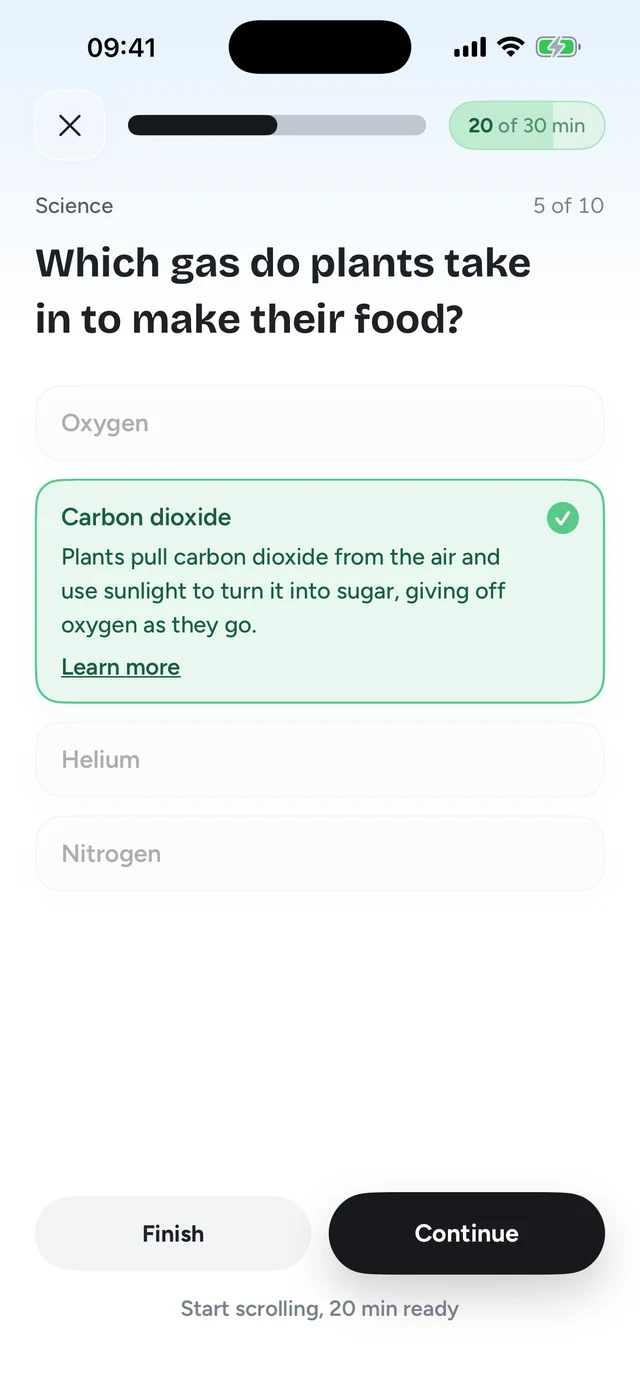
Unlike Face ID, the question can't be answered on reflex. You have to read it and think for a few seconds, which is often enough to ask yourself if you really wanted the app. It isn't a vault. It runs on Screen Time, so a determined person can get around it. But the gate gives you something back, so most people don't bother trying.
You can use both, too. Lock your banking app with Face ID for privacy and lock TikTok with Quizlock for focus. They don't get in each other's way. For every built in way to block an app, see how to block apps on iPhone.
Can you lock apps on iPhone?
Yes. On iOS 18 and later, touch and hold an app, tap Require Face ID, then confirm. The app then needs Face ID, Touch ID or your passcode to open.
How do I lock apps on iPhone with a password?
The built in app lock uses Face ID or Touch ID and falls back to your iPhone passcode. For a separate code, set a Screen Time limit and lock it with a Screen Time passcode, which blocks the app once the limit runs out.
How do I hide an app on iPhone?
Touch and hold the app, tap Require Face ID, then Hide and Require Face ID, authenticate, and tap Hide App. It moves to the Hidden folder at the bottom of App Library. Apps that came with the iPhone can't be hidden.
Can I lock apps on iPhone without Screen Time?
Yes, for privacy. The Face ID lock and Hidden folder don't use Screen Time. To lock apps so you use them less, you'll mostly be using Screen Time or an app built on it.
Why didn't locking Instagram with Face ID stop me using it?
Because Face ID recognizes you and opens the app in a second. It's a privacy lock. For focus, use a Screen Time limit with a passcode someone else holds, or Quizlock, which asks a quiz question before the app opens.